

TL;DR · executive summary
What you’ll find in this article
You are browsing a website, click a link and suddenly a screen appears with the message “Access Denied – Error 1020”. Or worse: your own visitors are being blocked when trying to access your page. Error Code 1020 is one of the most frequent security blocks on the modern web, generated by Cloudflare’s firewall rules when it detects a request that violates the configured access policies. Although its ...
You are browsing a website, click a link and suddenly a screen appears with the message “Access Denied – Error 1020”. Or worse: your own visitors are being blocked when trying to access your page. Error Code 1020 is one of the most frequent security blocks on the modern web, generated by Cloudflare’s firewall rules when it detects a request that violates the configured access policies. Although its purpose is to protect, when it triggers by mistake it becomes a barrier that drives away legitimate users and can directly impact the performance of your digital business.
What makes this error especially problematic is that its causes are multiple and often overlap. From overly restrictive firewall rules to conflicts with VPNs, through corrupted cookies or bot-management configurations that don’t correctly distinguish between automated and human traffic. This article offers you a complete technical guide to diagnose, resolve and prevent Error 1020, whether you are experiencing it as a visitor or inadvertently generating it on your own site.
What Error Code 1020 is and how it works
Error Code 1020 is an access-denied error generated by Cloudflare when an HTTP request violates an active firewall rule. It appears with the “Access Denied” message and means the request was blocked before reaching the origin server.
It is important to understand that this error does not come from the origin server or the CMS hosting your site. It is exclusively a response from Cloudflare’s WAF (Web Application Firewall), which means the request never reaches your server. This has practical implications: you won’t find records of these blocked requests in your hosting or WordPress logs, only in Cloudflare’s security panel.
The system evaluates each request against a set of rules that can include: geographic restrictions, blocked IP lists, suspicious user-agent patterns, request-rate limits, custom rules based on URL parameters and security-cookie validations. When any of these conditions is met, the result is the 1020 block.
At CRONUTS we have resolved this error for clients with active Cloudflare on WordPress sites where Wordfence generated conflicts with the firewall rules. The problem was that both systems tried to manage security simultaneously: Wordfence blocked requests before they reached Cloudflare, and Cloudflare interpreted that behaviour as anomalous traffic, triggering error 1020 for completely legitimate users. The solution was to clearly define which system handled each security layer — Cloudflare managing the external perimeter and DDoS protection, and Wordfence limited to WordPress internal security — eliminating the duplicate rules that generated the conflict. Since then, none of those clients has reported false positives of error 1020 again.
Main causes of Error 1020 on websites
Overly restrictive firewall rules
Error Code 1020 triggers when an HTTP request violates one of the WAF (Web Application Firewall) rules configured in the site’s Cloudflare panel. Web administrators, especially after suffering an attack or detecting suspicious traffic, tend to create broad rules that end up blocking entire IP ranges, whole countries or traffic patterns that include legitimate users. A rule that blocks all requests from a certain country may seem like a reasonable security measure, but if part of your target audience lives there, you are losing qualified traffic.
Conflicts with VPNs, proxies and corporate networks
Users browsing through VPNs share IP addresses with thousands of other users, some of whom may have generated previous malicious activity. When Cloudflare detects that an IP has been used for attacks or scraping, it can mark it as suspicious, affecting all users who share that same IP. Corporate networks with NAT (Network Address Translation) generate a similar effect: hundreds of employees browse under a single public IP, and if one of them generates anomalous activity, the block can affect the whole organisation.
Corrupted cookies and session problems
Cloudflare uses specific cookies (such as cf_clearance and __cf_bm) to validate that a visitor has passed the security checks. If these cookies get corrupted, expire prematurely or are deleted by browser privacy extensions, the system interprets the request as new and potentially suspicious. This generates frustrating block cycles for legitimate users who can see the site correctly one moment and find themselves blocked the next.
Why does error code 1020 appear on ChatGPT, Zoom or Spotify?
If you got here because error code 1020 appears when you try to enter ChatGPT, join a Zoom meeting or open Spotify, it is no coincidence. These platforms have something in common: they all use Cloudflare as a security and DDoS-protection layer. When their firewall detects that your IP, your VPN or your browser breaks one of their access rules, it blocks the request and shows exactly the same message you are seeing: “Access Denied – Error 1020”.
In these cases, the problem is almost never in your account or the service itself. The most common causes are using a VPN with an IP previously flagged as suspicious, having browser extensions that modify HTTP headers, or connecting from a corporate or university network with restrictive proxy rules. The solution is the same as for any 1020 error: disable the VPN, clear browser cookies and cache, and try from a different network or in incognito mode.
Step-by-step diagnosis of Error Code 1020
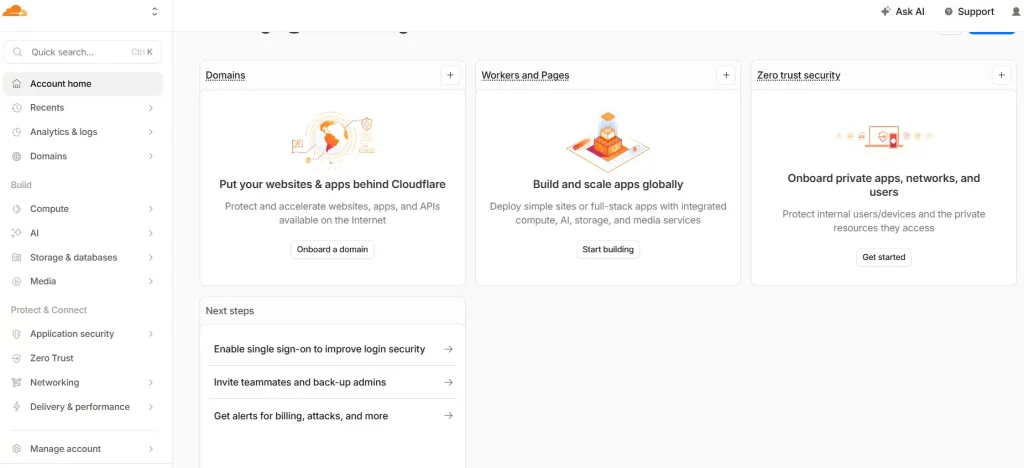
Before applying any solution, you need to identify the root cause. Systematic diagnosis will save you time and prevent you from applying fixes that don’t address the real problem. The first step is to access the Cloudflare panel and navigate to Security > Events. There you will find a detailed record of each blocked request, including the origin IP, the user-agent, the requested URL and, crucially, the specific rule that triggered the block.
Identify the rule responsible for the block. Cloudflare labels each event with the rule ID and a description indicating whether it is a custom rule (created by you), a Cloudflare-managed rule or a Rate Limiting rule. This information is fundamental because the solution varies completely depending on the type of rule. A custom rule you can modify directly. A managed rule requires adjusting the sensitivity or creating an exception.
If the error affects you as a visitor and you don’t have access to the Cloudflare panel, diagnosis focuses on isolating variables. Try from a different connection (mobile data instead of WiFi), disable the VPN if you are using one, clear the browser cookies and try in incognito mode. If the site works under any of these conditions, you will have identified the factor that triggers the block.
What is the Ray ID and why is it key to diagnosing error 1020?
When Cloudflare blocks a request and shows error 1020, at the bottom of the error screen a 16-character alphanumeric code called the Ray ID appears. It looks like this: Ray ID: 8a3f2c91b04d7e1a. This identifier is the starting point of the diagnosis and, without it, locating the exact rule causing the block is practically impossible.
The Ray ID works like a fingerprint of that specific request: it records the exact moment the block occurred, the origin IP, the Cloudflare data center that processed the request and the firewall rule that triggered. If you are the site owner, access your Cloudflare panel, go to Security › Events and paste the Ray ID into the search box. In seconds you will see which rule blocked that specific request and you can decide whether to modify it, create an exception or confirm the block was legitimate.
If you are a visitor and the error persists, copy the Ray ID from the error screen and provide it to the site administrator along with your IP and the URL you were trying to visit. With that information, the admin can locate the event in seconds instead of reviewing hundreds of records blindly.
If you confirm it is a false positive — a legitimate user blocked by mistake — the fastest solution is to add their IP to the whitelist via an Allow rule in Cloudflare › Security › WAF › IP Access Rules.
Why do you see error 1020 and not another message? Cloudflare actions explained
When Cloudflare detects a suspicious request, it does not always react the same way. Error 1020 is only one of the possible responses, and understanding which one corresponds to each situation helps you diagnose exactly what is happening on your site and why some users see a total block while others only have to solve a CAPTCHA.
Cloudflare has four main actions it can execute when a request triggers a firewall rule. The one that determines whether the visitor sees error 1020 or something different is precisely the action configured in that specific rule:
| Action | What the visitor sees | Error 1020? | When to use it |
|---|---|---|---|
| Block | “Access Denied – Error 1020” screen. Access completely denied. | Yes | Confirmed malicious IPs, aggressive bots, deliberately blocked geographic ranges. |
| Managed Challenge | Invisible verification or adaptive CAPTCHA. The user can pass if human. | No | Suspicious but unconfirmed traffic, VPNs, datacenter IPs, protecting contact or login forms. |
| JS Challenge | Brief waiting screen while JavaScript runs in the browser. | No | Simple bots without JS support, basic scrapers, light protection of public endpoints. |
| Allow | Direct access with no restriction or verification. | No | Trusted whitelisted IPs, Googlebot, monitoring tools, the business’s own APIs. |
If in your Cloudflare panel you see that the rule firing has the Block action configured, that is exactly what generates error 1020. Changing it to Managed Challenge is frequently the smartest solution when you want to keep security without blocking legitimate users: instead of denying access completely, Cloudflare presents an invisible verification or a CAPTCHA that humans pass without trouble and bots don’t.
Technical solutions to resolve Error 1020 as an administrator
If you are the administrator of the site that generates Error 1020, you have full control to resolve it. The solution depends on the cause identified in the diagnosis. For overly broad custom firewall rules, the strategy is to refine the conditions. Instead of blocking a whole country, filter by more specific combinations: country + suspicious user-agent, or country + abnormally high request rate. Cloudflare allows you to combine up to five conditions in a single rule, which offers enough granularity for most scenarios.
IP whitelists are essential to avoid blocking your own team, third-party services and legitimate bots. Add the IPs of your office, those of payment services such as payment gateways or third-party APIs, and those of search-engine bots (Googlebot, Bingbot) to the whitelist. This configuration is managed from Security > WAF > Tools > IP Access Rules. For SEO strategies it is critical that Google’s crawlers are not inadvertently blocked.
If the problem is related to Cloudflare’s managed rules (Managed Rules), you can adjust the WAF sensitivity from Security > WAF > Managed Rules. Reducing the sensitivity from “High” to “Medium” or “Low” for specific rules usually resolves false positives without significantly compromising security. You can also create specific exceptions that disable particular rules for certain URLs, useful when a rule legitimately blocks most traffic but generates false positives on specific pages.
How to resolve Error 1020 as a visitor
When you encounter Error 1020 as a user and have no control over the site’s configuration, there are several actions you can take. The first and most effective is to clear the browser cookies for the specific domain generating the error. In Chrome, go to Settings > Privacy and Security > Cookies and other site data > See all site data and permissions, find the domain and delete its cookies. This forces a new Cloudflare security check.
If you are using a VPN, disable it temporarily and reload the page. The shared IPs of popular VPN services are often flagged in the reputation databases that Cloudflare consults. Switching to a different VPN server can also work if the current server has an IP with a bad reputation. Another approach is to try in the browser’s incognito mode, which rules out problems with existing extensions or cookies.
If none of these solutions works, the block rule is probably based on your IP range or geographic location, something only the site administrator can modify. In that case, contact the website owner providing your IP (visible on whatismyip.com), the exact URL you are trying to visit and the time of the attempt. This information lets the administrator quickly locate the block event in the Cloudflare logs and identify the responsible rule.
Advanced Cloudflare configuration to avoid false positives
The optimal Cloudflare configuration balances security and accessibility. The Security Level is the first parameter to adjust: set it to “Medium” as a starting point. The “High” and “I’m Under Attack” levels are useful during active attacks but generate an unacceptable rate of false positives in normal operation. You can configure the security level differently per URL using Page Rules, applying greater protection to sensitive areas such as /wp-admin/ or /api/ and less restriction to public pages.
Cloudflare’s Bot Fight Mode deserves special attention. When enabled, it can block legitimate bots that don’t identify themselves correctly, including monitoring and analytics tools, uptime-monitoring services and some social-media crawlers. If you detect that legitimate tools are being blocked, review this configuration in Security > Bots and consider adding specific exceptions for the affected user-agents.
Rate Limiting rules are another frequent source of Error 1020. Configurations that are too aggressive (for example, blocking after 10 requests per minute) can affect legitimate users who browse the site quickly or load pages with many resources. A threshold of 100-150 requests per minute is usually a reasonable starting point for standard websites, adjustable according to your audience’s normal browsing pattern.
Prevention strategies to avoid Error Code 1020
Preventing Error 1020 starts with a well-documented security policy. Explicitly define which type of traffic should be blocked and which should be allowed, instead of adding reactive rules after each incident. A comprehensive web protection plan includes not only the firewall configuration, but also incident-response protocols that avoid overreactions that harm accessibility.
Implement a periodic review process for the firewall rules. Rules that made sense six months ago may not be relevant today, and accumulating obsolete rules increases the probability of conflicts and false positives. Schedule a quarterly audit where you review each active rule, its trigger rate and whether the blocks it generates are legitimate. Cloudflare provides per-rule trigger statistics that make this evaluation easier.
Actively monitor security events with configured alerts. Cloudflare lets you send notifications when the block rate exceeds a defined threshold. A sudden spike in 1020 blocks may indicate a real attack that requires attention, or a new rule that is generating massive false positives. Early detection lets you act before the impact on user experience becomes significant.
Impact of Error 1020 on SEO and digital performance
Error 1020 has direct consequences on your website’s ranking if it affects search-engine crawlers. When Googlebot receives a 1020 block, it cannot crawl or index the affected page. If this happens systematically, Google may reduce the crawl frequency of your entire domain, which slows the indexing of new content and can cause drops in search-result positions.
Regularly verify in Google Search Console that Googlebot can access your site without problems. The Coverage report shows if there are pages the bot could not crawl, and the URL Inspection tool lets you simulate a crawl in real time. If you detect access problems, immediately review the Cloudflare rules to ensure Google’s IP ranges are whitelisted. Complement this monitoring with an analysis of search visibility to detect any early impact.
Beyond SEO, Error 1020 impacts critical business metrics. Each blocked visitor is a potential lost conversion. In Google Ads campaigns, a 1020 block means you are paying for clicks that never reach your landing page, wasting advertising budget directly. Cross the Cloudflare block data with your advertising platform’s to quantify the real economic impact.
Error 1020 in WordPress: specific causes and solutions
WordPress sites present additional causes of Error 1020 related to their architecture. Security plugins like Wordfence or Sucuri can generate conflicts with Cloudflare rules, creating a double protection layer that interferes with itself. When both systems evaluate the same request with different criteria, the result can be a false-positive block. The solution is to decide which system manages which security aspect and configure both to avoid overlaps.
WordPress’s xmlrpc.php file is a frequent target of brute-force attacks, and many Cloudflare rules block it by default. However, some legitimate plugins and mobile apps depend on XML-RPC to work. If you need to keep XML-RPC active, create a specific rule that allows access only from known IPs instead of disabling the protection globally. Alternatively, migrate the functionality that depends on XML-RPC to the WordPress REST API.
Automatic updates of WordPress, themes and plugins can also be affected. The requests WordPress makes to wp.org to check for updates can trigger Rate Limiting rules if your server makes multiple checks in a short period. Make sure the origin-server IPs are whitelisted in Cloudflare so that server-to-server communications are not affected by the security rules aimed at visitor traffic.
How artificial intelligence is redefining web security and error management
Artificial intelligence is fundamentally transforming how web security systems distinguish between legitimate and malicious traffic. Traditional WAFs operate with static rules that generate inevitable false positives. AI-based systems, like those Cloudflare is progressively integrating into its platform, analyse behaviour patterns in real time and dynamically adapt the block thresholds according to the context of each request.
Machine-learning models trained with data from millions of websites can identify malicious-traffic patterns with a precision that manual rules cannot match. These systems evaluate dozens of signals simultaneously: browsing speed, mouse-movement patterns, the sequence of visited pages, device characteristics and the IP’s behaviour history. The result is a significant reduction in false positives, which benefits both security and user experience.
For web administrators, AI also makes proactive security management easier. Predictive-analytics tools can anticipate spikes of malicious traffic based on historical patterns and external events, allowing firewall rules to be adjusted preventively instead of reactively. This evolution towards adaptive security promises to drastically reduce the incidence of errors like 1020 in the coming years.
Web security shouldn’t be a choice between protection and accessibility. Intelligent firewall configuration lets you block real threats without turning your site into a fortress inaccessible to the users you want to attract.
Albert Puig Navàs · Co-Founder & Head of Growth at CRONUTS.DIGITAL